How to use NiRoom
Working with NiRoom is available once your wallet has an alias. Open your wallet and click the NiRoom tab in the wallet menu.
Connection status
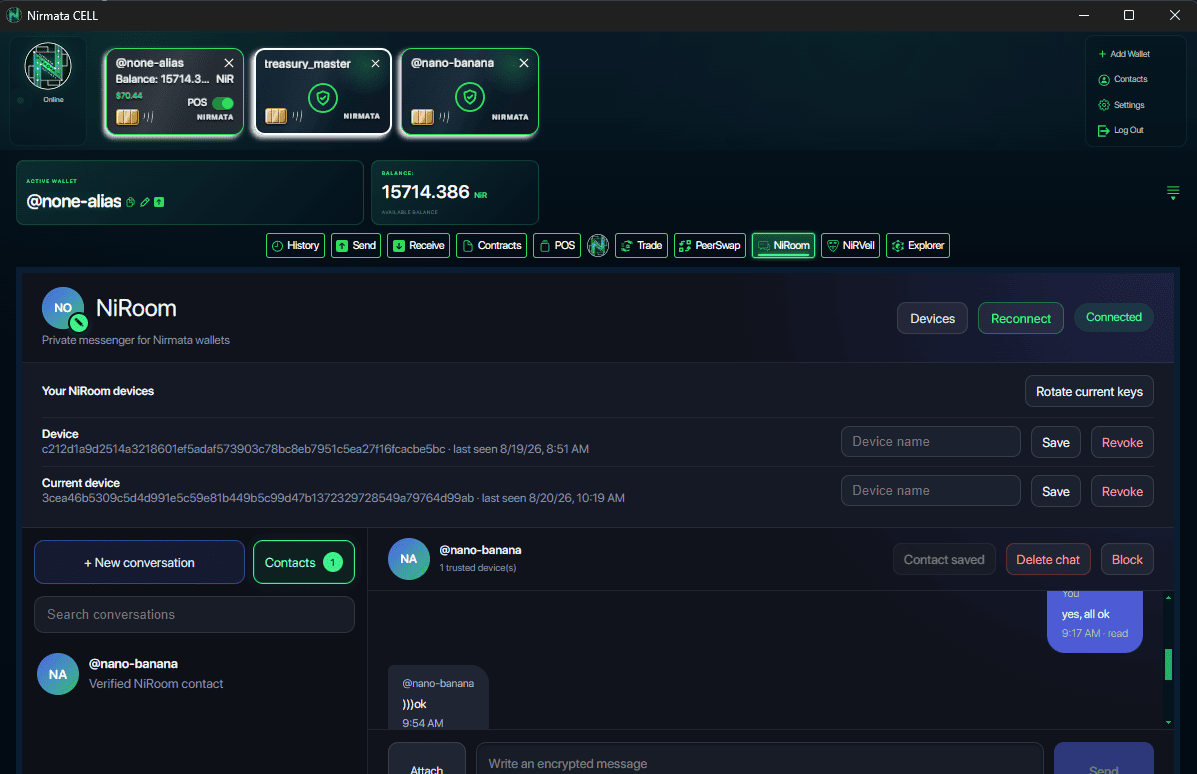
The header shows whether your wallet is currently connected to the NiRoom relay: Connecting…, Connected or Offline. You need to be connected to send or receive messages; queued messages are still delivered once the connection is restored.
Start a Conversation
- Click + New conversation.
- Enter the recipient's alias (
@alias) and click Open (or press Enter).
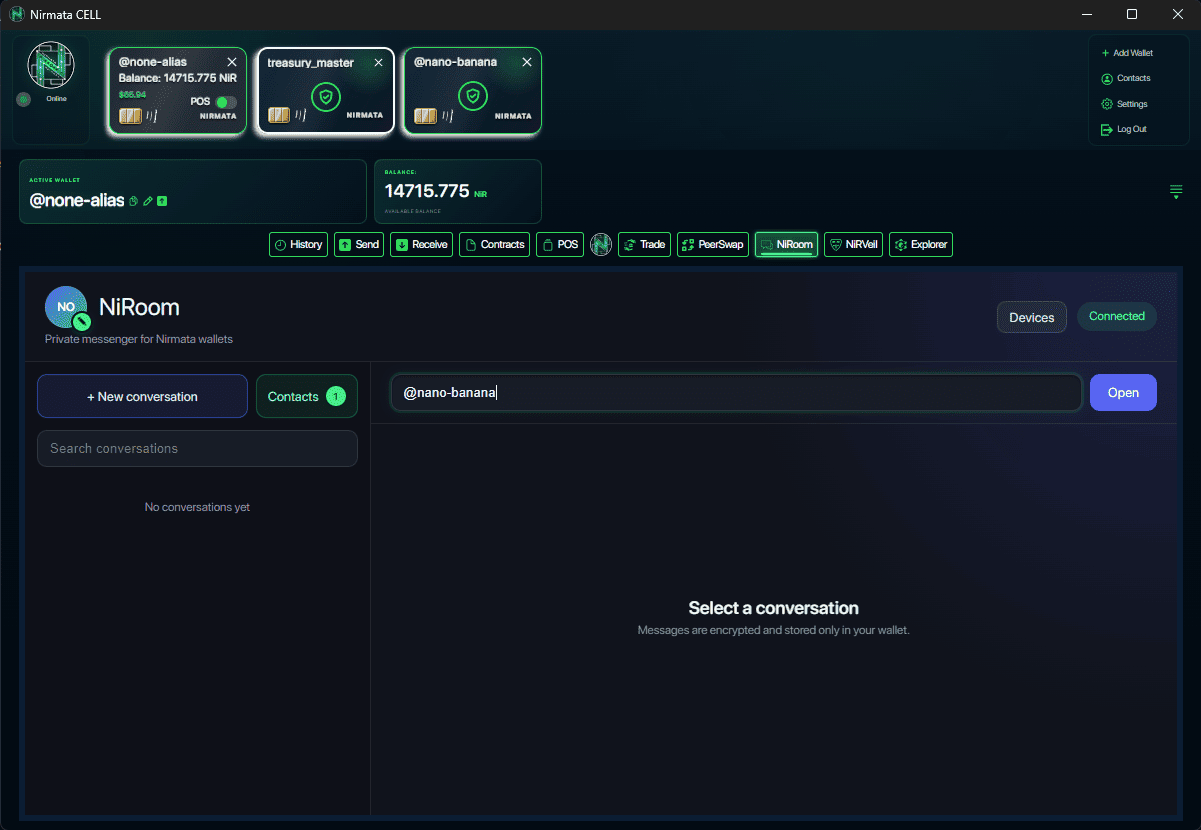
- NiRoom resolves the alias to a Nirmata address and fetches its published device keys.
- Write your message in the composer and click Send, or press the send shortcut from the message box.
Every message is encrypted on your device before it leaves the wallet; the relay only ever handles ciphertext.
Each outgoing message shows a delivery status next to its timestamp:
- pending — waiting to be delivered;
- stored — accepted by the relay, waiting for the recipient to fetch it;
- delivered — fetched by the recipient's device;
- read — opened by the recipient.
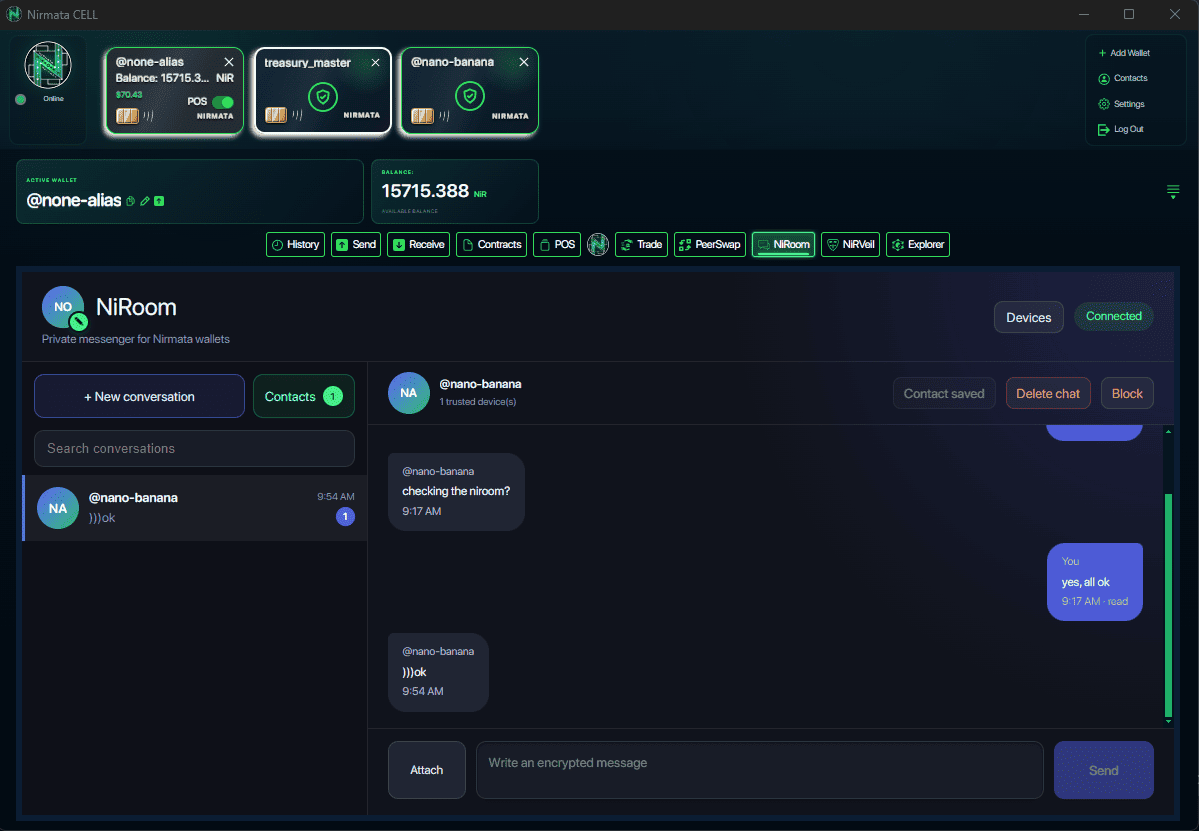
If a send is interrupted, NiRoom retries the exact same encrypted payload instead of re-encrypting the message, so retries never create duplicate messages on the recipient side.
Send an Attachment
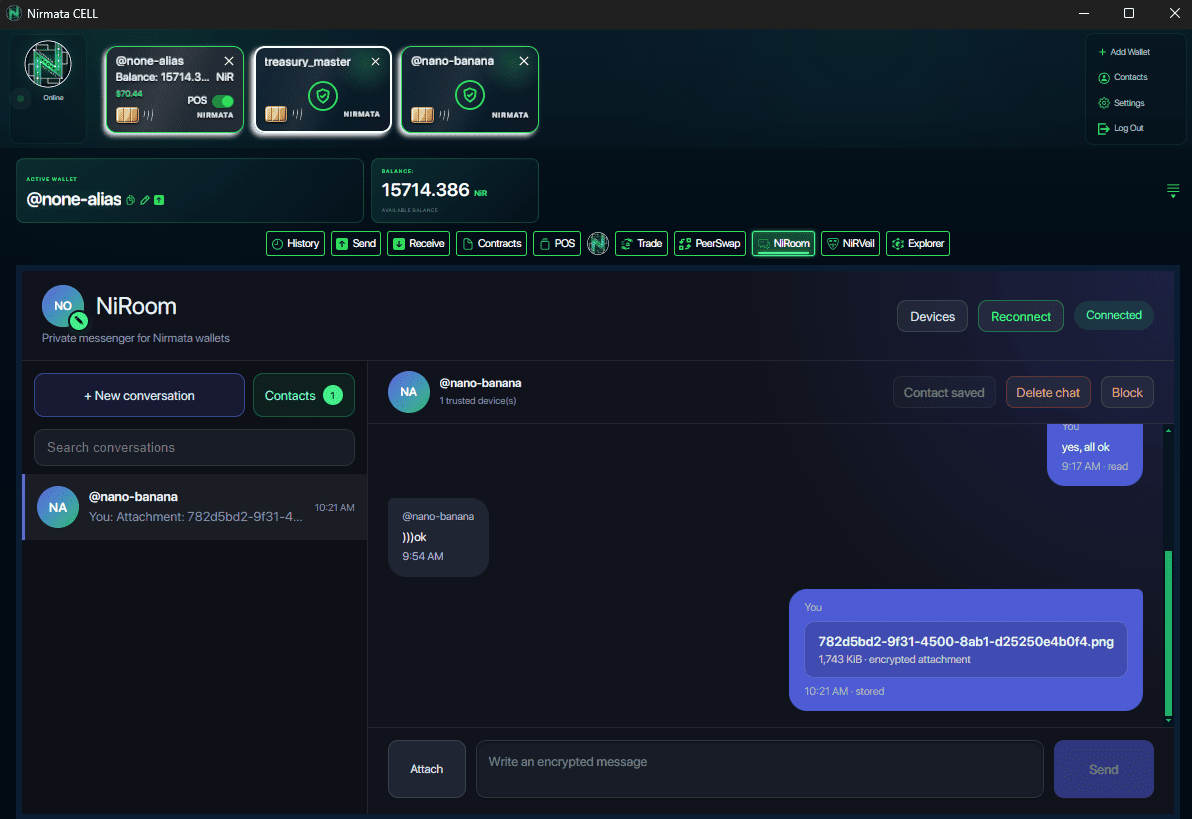
- Open a conversation and click Attach.
- Choose a file. NiRoom encrypts it locally with a fresh key before uploading the ciphertext.
- The recipient sees an attachment card with the file name and size; clicking it downloads and decrypts the file, verifying its integrity before it is saved.
Conversations and Search
The left-hand panel lists your conversations, sorted by latest activity, with unread counts. Use the Search conversations field to filter the list by contact.
Contacts
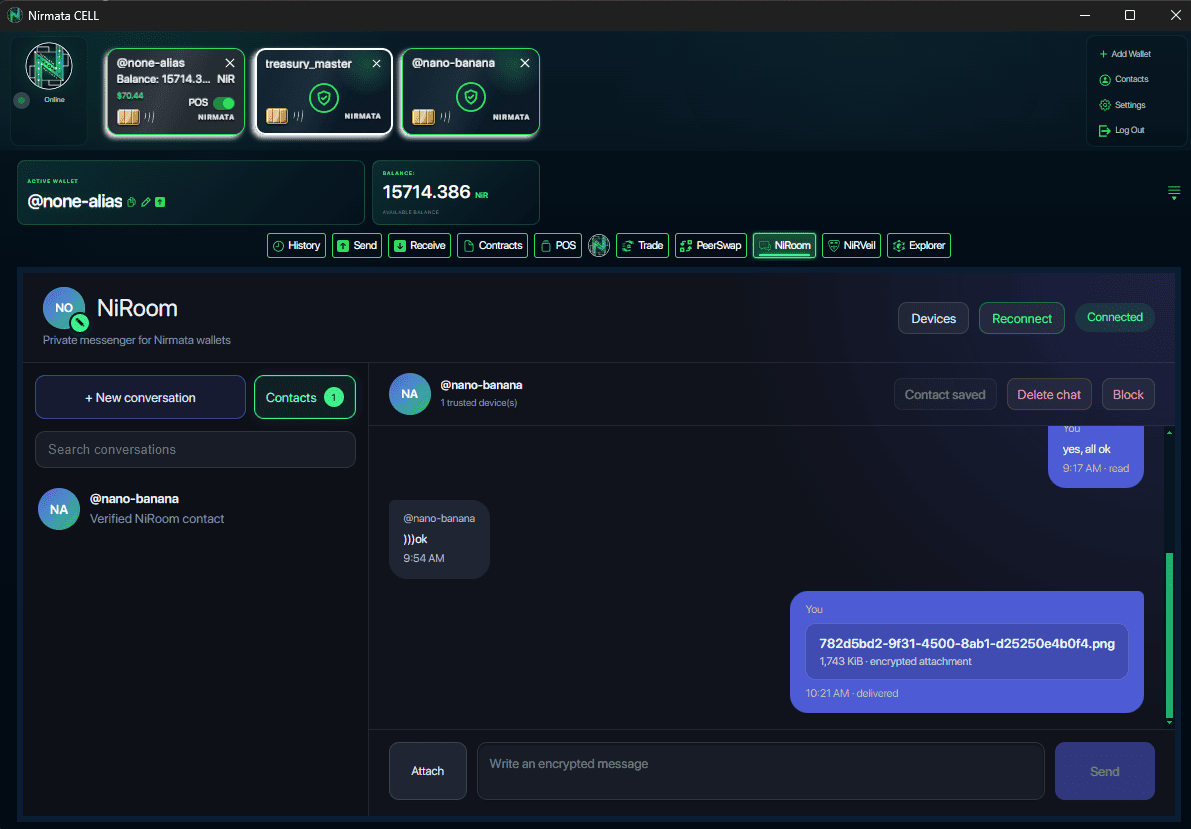
Switch to the Contacts tab (next to conversations) to see your saved, verified contacts.
- Save a contact. Inside a conversation, once the peer has at least one trusted device, click Save verified contact.
- Open a saved contact. Click a contact from the Contacts list to jump straight to a conversation with them.
- Contact names, avatars and trust state are stored only inside your encrypted wallet — they are never uploaded to the relay.
Block / Unblock
Open a conversation and click Block in the contact header to stop a peer from messaging you. While a contact is blocked:
- you cannot send them messages;
- their incoming messages are discarded automatically and never decrypted or added to your history.
Click Unblock to resume the conversation.
Delete a Conversation
Open a conversation and click Delete chat to remove it (and its local message history) from your wallet.
Manage Your Devices
Click Devices in the NiRoom header to open the devices panel. From there you can:
- see every device registered to your wallet identity, and when it was last seen;
- rename a device by editing its name and clicking Save;
- Rotate current keys — issues a fresh signed prekey and one-time prekey pool for your current device and invalidates its existing NiRoom sessions. Use this if you suspect your device's key material may have been exposed.
- Revoke a device you no longer use or that may be lost or compromised. Revocation takes effect immediately and cannot be undone from that device.
Set Your NiRoom Avatar
Click your avatar in the NiRoom header to upload an image. Avatars are shared with your contacts as part of your encrypted profile, not stored as plaintext on the relay.