How to use Nirmata Archive
The desktop app has three tabs: Create Archive, My Archives and Extract Archive.
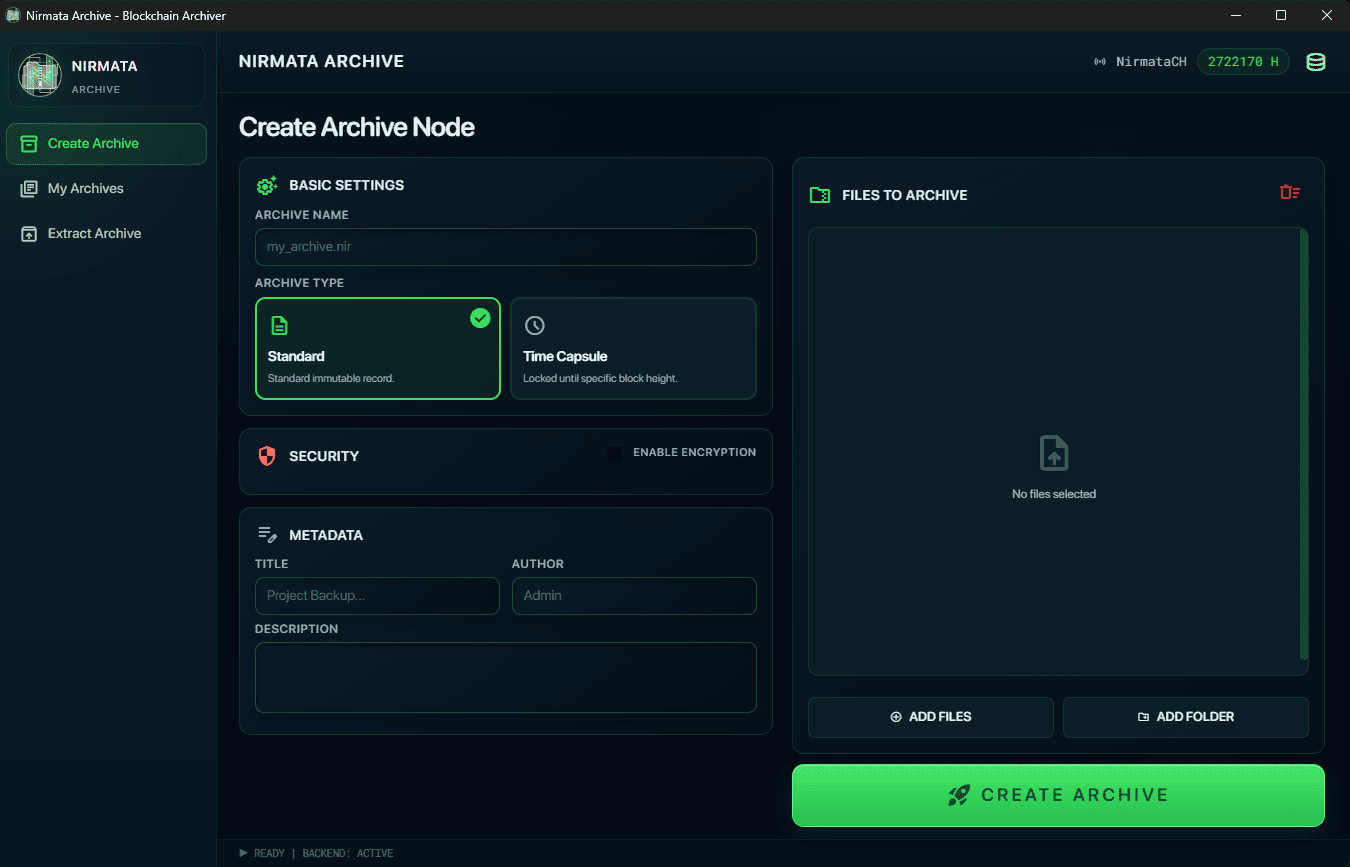
Create an Archive
- Open the Create Archive tab.
- Under Basic Settings, name your archive and pick an Archive Type:
- Standard — a regular immutable archive, no blockchain lock.
- Time Capsule — locked until a block height you set.
- If you picked Time Capsule, set the Unlock Block Height under Time Capsule Settings. Use Current + 1000 to set it ~1000 blocks (roughly 1000 minutes) from the current chain height automatically, or enter an exact height yourself.
- Under Security, toggle Enable Encryption if you want the archive protected with a password, and enter a Master Password — this is AES-256 encryption. There's no password recovery, so store it somewhere safe.
- Under Metadata, optionally fill in Title, Author and Description.
- Under Files to Archive, click Add Files or Add Folder to choose what goes in.
- Click Create Archive.
Browse Your Archives
Open My Archives to see every archive you've created, with its type, status, size and creation date. An archive's status badge is one of:
- READY — a standard archive, open it any time.
- LOCKED — a time capsule whose target block height hasn't been reached yet.
- UNLOCKED — a time capsule whose target block height has been reached; it can now be extracted.
Use Refresh to re-check status, or Open Folder to reveal the archive files directly.
Extract an Archive
- Open the Extract Archive tab.
- Under Select Archive, click Browse and choose a
.nirfile. If it's a time capsule that's still locked, extraction is refused until its target block height is reached. - Enter the Password, if the archive was created with encryption.
- Under Destination Folder, click Choose to pick where the files go.
- Click Extract Payload to extract everything, or check individual files under Contents (or Select All) and click Extract Selected to pull out only what you need.
Using the command line
The same functionality is available from the nirarc command-line tool, useful for
scripting or automation:
# Create a regular archive
nirarc create archive.nir file1.txt file2.txt

# Create a time capsule locked until block height 1000000
nirarc create -t -b 1000000 secret.nir important.doc

# Create an encrypted archive with metadata
nirarc create -e -p mypassword -m "Project Files" -a "John Doe" -d "Important documents" archive.nir *.txt

# List, inspect and extract
nirarc list archive.nir
nirarc info archive.nir
nirarc extract archive.nir -o output_dir
Run nirarc help for the full list of commands and options.